

Get your API keys
Create an API key in the merchant portal.
Your API key tells Zoorya Pay that a request really comes from your business. You get one API key from the merchant portal, e.g. zp-checkout-12345678:3f9c0e7a1b2d4c6e8f0a1b2c3d4e5f60. Your server sends it to Log in and gets a token for the other calls.
Create a key#
- 1
Open API keys
In the merchant portal, open Developer → API keys.
- 2
Set up the key holder (first time only)
If you see No key holder yet, click + Set up key holder. This creates the service account that owns all your API keys. You only do this once.

- 3
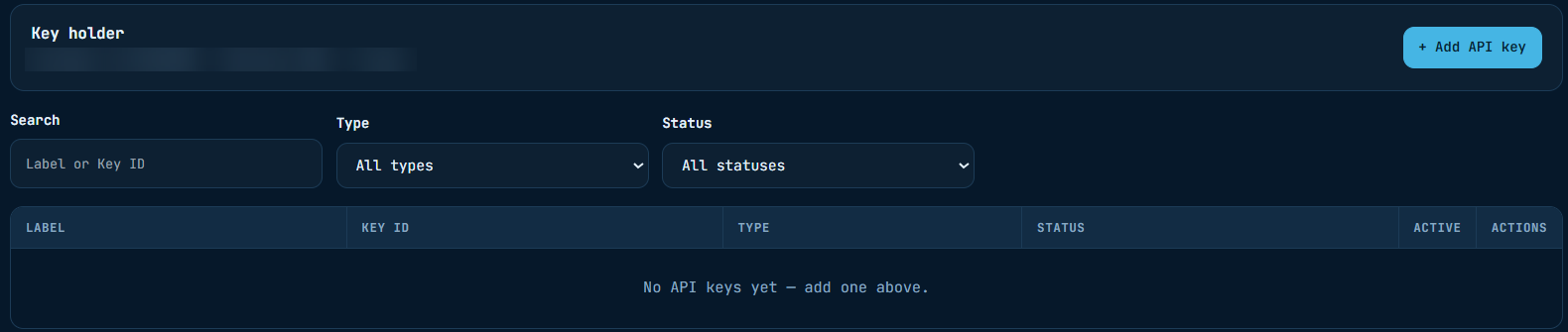
Add an API key
Click + Add API key.
Fill in:
- Key label — a name for you, e.g.
Shop backend. - Key type — choose Key ID + secret. The API does not use signing keys.
- Key ID — a name for the key, e.g.
zpay-shop-backend: 3 to 40 characters, no spaces or colons.
Click Create key.
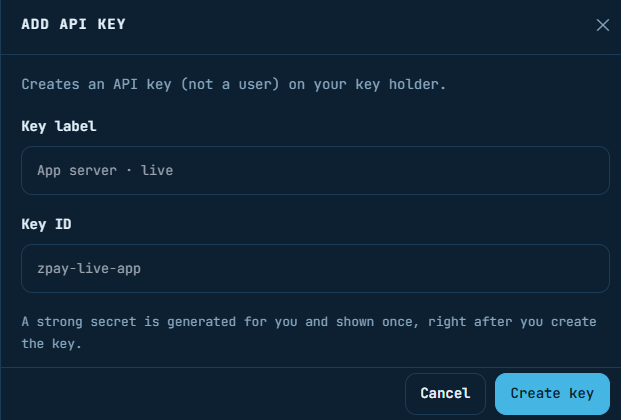
- Key label — a name for you, e.g.
- 4
Copy the API key now
The portal shows your API key, e.g.
zp-checkout-12345678:3f9c0e7a1b2d4c6e8f0a1b2c3d4e5f60. Click Copy API key and store it somewhere safe, such as your server's environment variables or a secrets manager. Then click Done — I've saved it.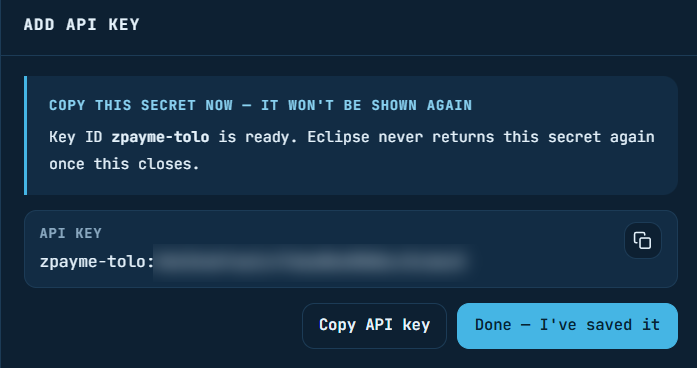
The secret part is blurred here. Yours is shown in full. The API key is shown once. When you close this panel it cannot be shown again. If you lose it, rotate the key to get a new one.
Use the key#
Send it to Log in, split at the first colon: the part before is identity, the part after is password.
{ "identity": "zp-checkout-12345678", "password": "3f9c0e7a1b2d4c6e8f0a1b2c3d4e5f60" }You get a token back (headerValue). Send it as the Authorization header of every other call. In Try it on the Log in page, just paste the whole key — it is split for you.
Manage keys#
| Action | What it does |
|---|---|
| Rotate | Issues a new API key in place of the old one. The old key stops working. |
| Disable / enable | The Active switch blocks the key. Turning it back on gives the key a new secret, shown once — update your server. |
| Revoke | Deletes the key for good. You type the Key ID to confirm. Anything using it stops working at once. |
Use a separate key for each system (shop backend, reporting script…). Then you can rotate or revoke one without touching the others.