

Production sign-up
Register your business for real payments, step by step.
Production moves real money, so Zoorya Pay checks the business owner and the business before your account can take payments. Sign-up has four steps, then a review by the Zoorya Pay compliance team.
Have these ready before you start:
- The owner's Fayda national ID number or passport number
- Business registration number, TIN and VAT number
- Files: TIN certificate, trade / business licence, the owner's ID (Fayda or passport) and bank account proof
- 1
Sign up: owner identity
Go to merchant.zooryapay.et and choose Create a account.
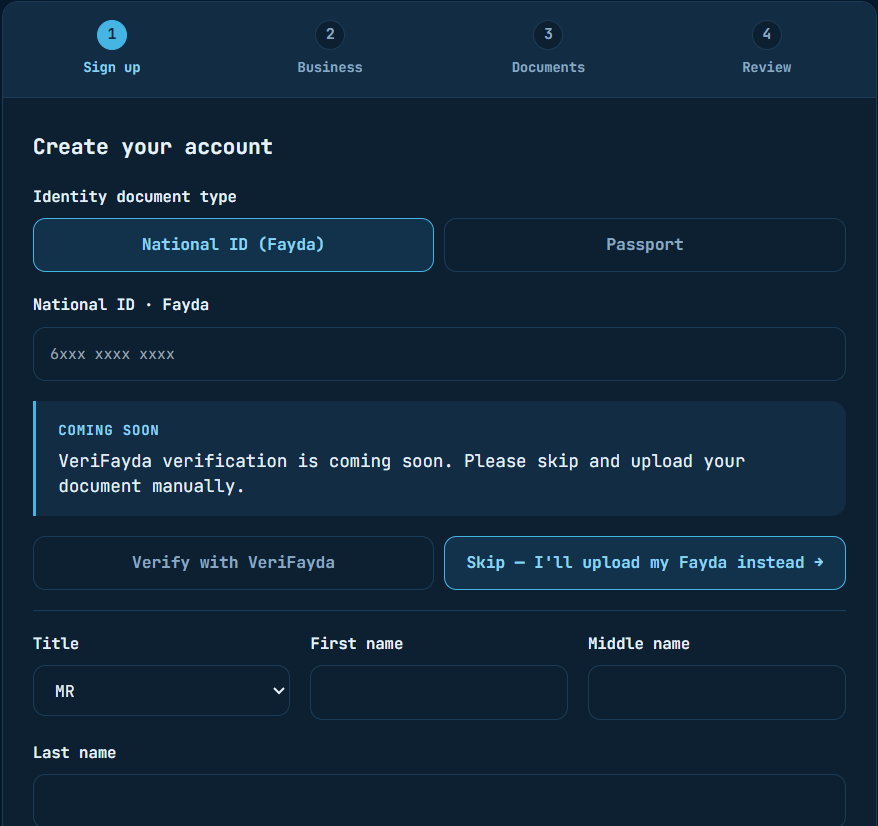
Choose the owner's Identity document type — National ID (Fayda) or Passport — and enter the number.
Online Fayda verification (VeriFayda) is coming soon. For now, click Skip — I'll upload my Fayda instead. You upload the ID in step 4.
Then enter the owner's title, first, middle and last name.
- 2
Sign up: owner details
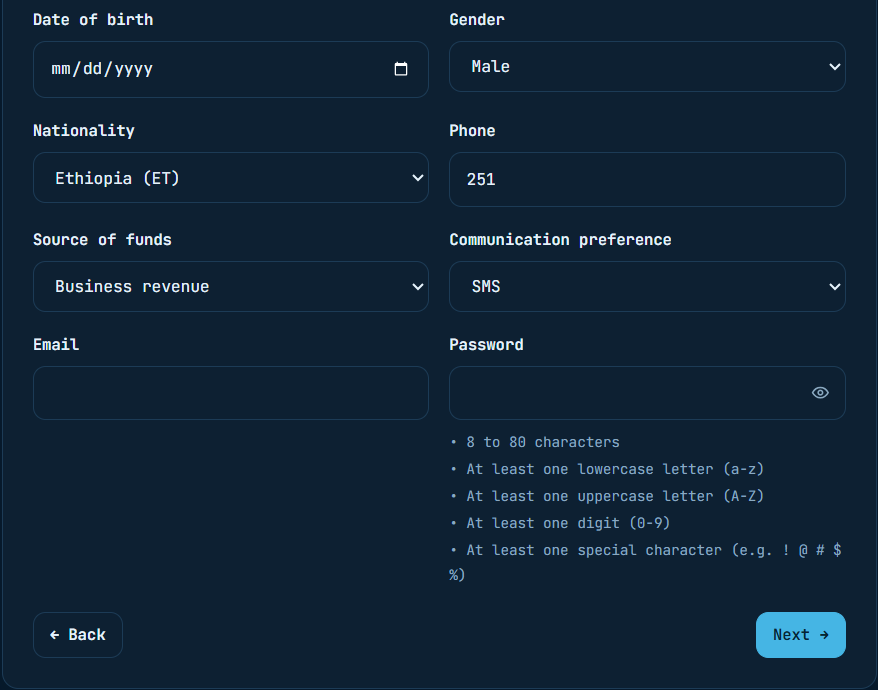
Fill in date of birth, gender, nationality, phone (starts with
251), source of funds, communication preference, email and password.The password must have 8 to 80 characters, with at least one lowercase letter, one uppercase letter, one digit and one special character (e.g.
! @ # $ %).Click Next.
- 3
Sign in
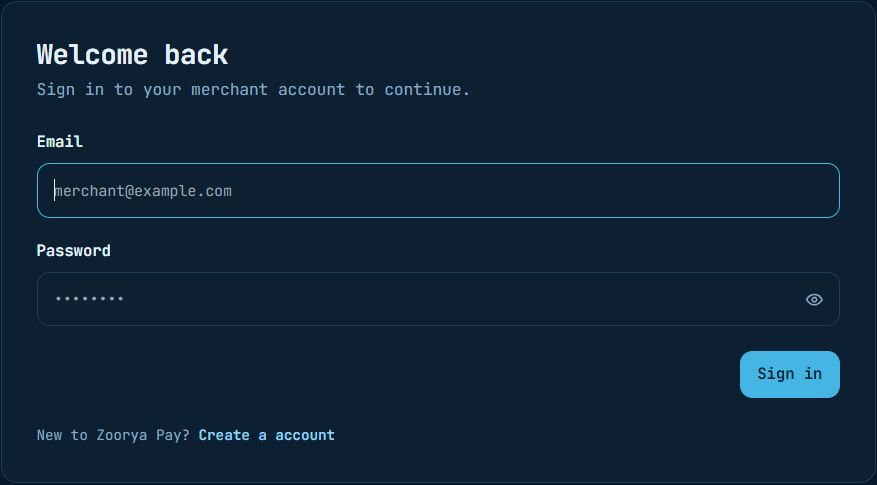
Your owner account is now created. You are taken to the sign-in page. Sign in with the email and password you just chose — the rest of the application is done as you.
- 4
Business details (KYB)
Enter the business: business name, trading name, business type, registration number, TIN, VAT number, category (MCC), registration date and sector.
Fill from a document: upload your trade / business licence or TIN certificate and the form fills in what it can read. Check every field — anything it could not read stays empty, and you can edit all of them.
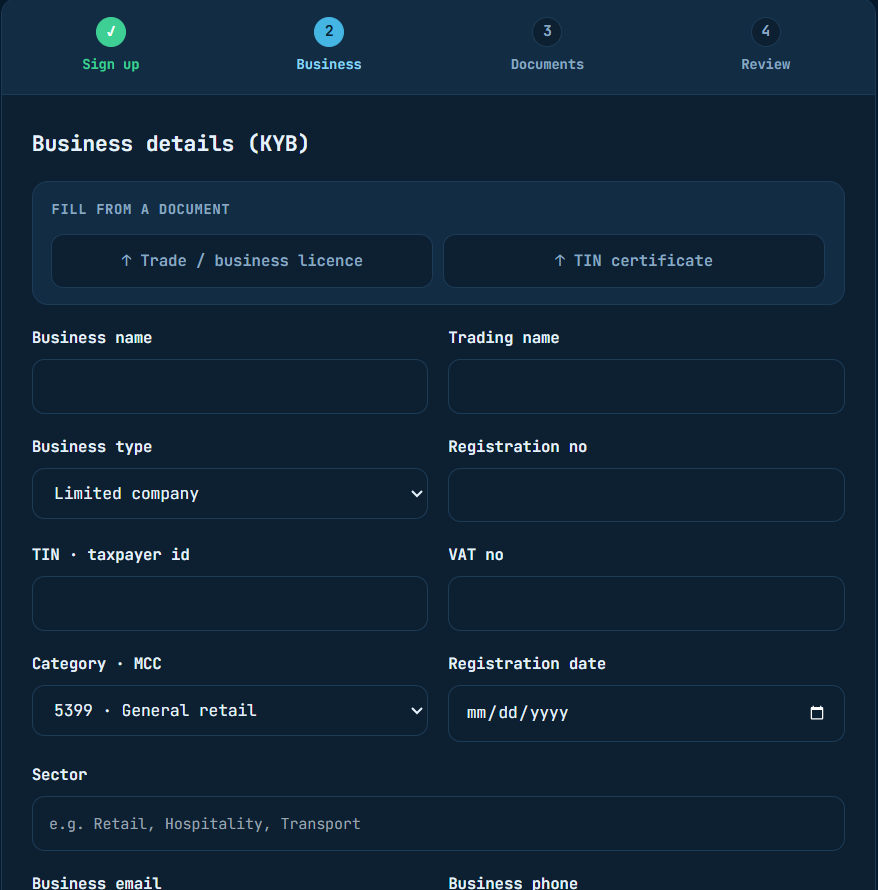
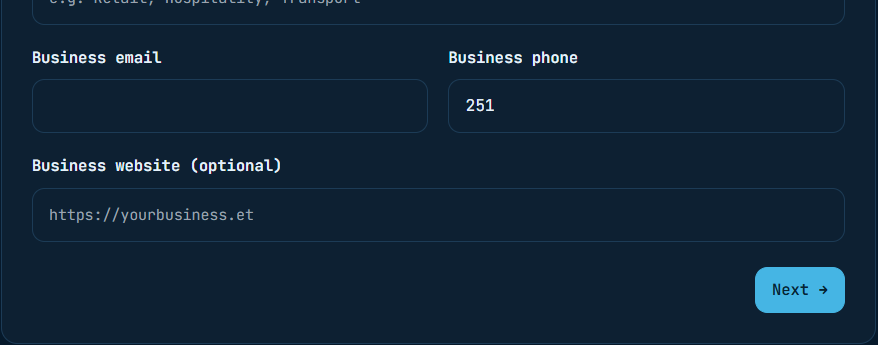
Then add the business email, business phone and, if you have one, the website. Click Next.
- 5
Documents
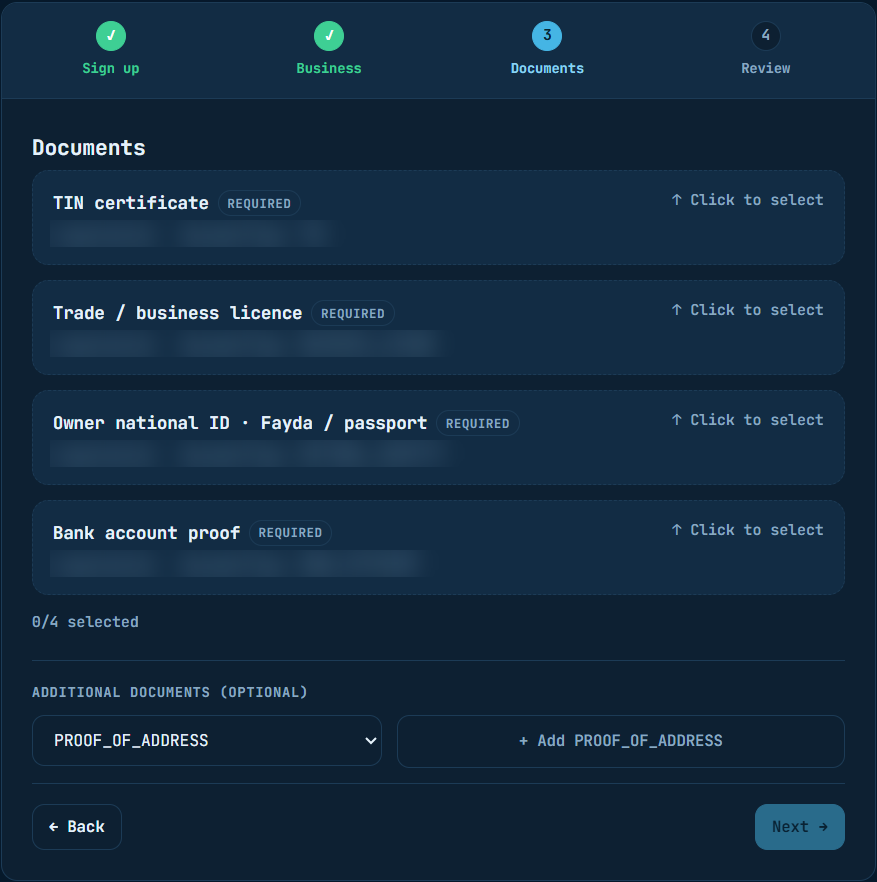
Upload the four required documents:
Document Notes TIN certificate Required Trade / business licence Required Owner national ID — Fayda or passport Required Bank account proof Required You can also add optional documents, such as proof of address. Next turns on once all four required files are selected.
- 6
Review and submit
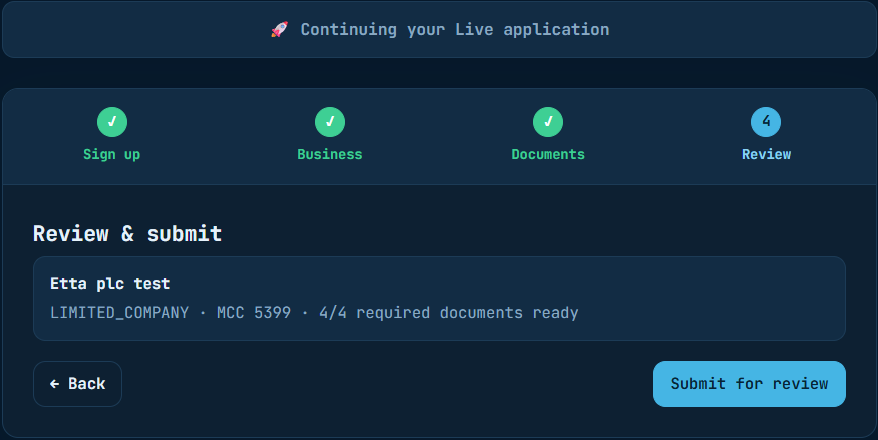
Check the summary: business name, type, category and 4/4 required documents ready. Click Submit for review.
- 7
Submitted for review
Your business and owner details are now with the Zoorya Pay compliance team. Automatic checks run first, then a person reviews your application.
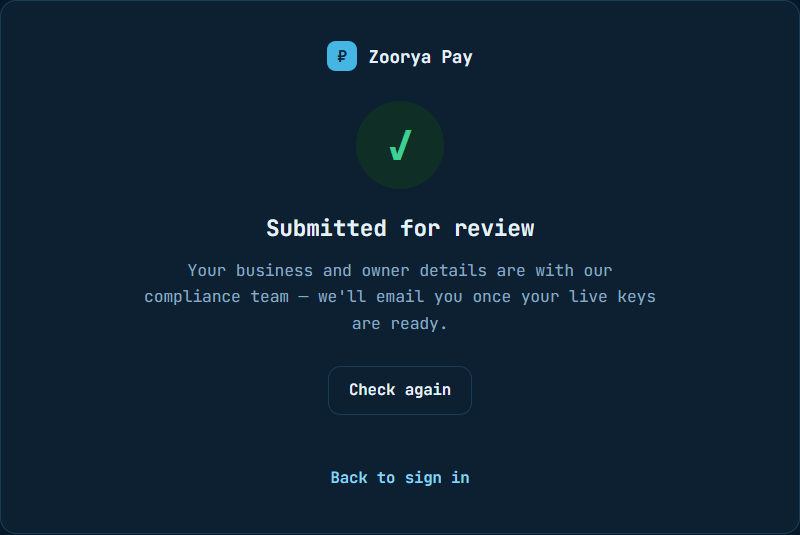
Click Check again at any time, or sign in later, to see if you are approved.
After the review#
| Result | What you see | What to do |
|---|---|---|
| Approved | Check again (or your next sign-in) takes you straight into the merchant portal. | Create your production API key — same steps as Get your API keys. Then go live. |
| Not approved yet | The same "Submitted for review" page. | Wait, and check again later. |
| Rejected | The page shows why. | Fix the problem and resubmit. |
Until you are approved, API calls with a production key return 403. Keep building and testing in sandbox while you wait.
Your progress is saved if you have to stop. Signing in again brings you back to the step you were on ("Continuing your Live application").